Evaluate typical page workflows with a screen reader
From orientation to correction: a structured workflow evaluation with an executable example and explicit evidence boundaries.

A website can be reachable with a keyboard and still make little sense to a screen reader user. An unnamed button is reachable, but its purpose remains hidden. A new message can exist in the document without being noticed at the moment it matters. Evaluation therefore needs to follow a complete task: orientation, selection, input, feedback and the next meaningful step.
This guide explains how a team can investigate typical page workflows systematically. The learning example is a small reading list with an editable title and an information dialog. It includes specific evaluation questions, a complete HTML example and a distinction between technical browser findings and actual screen reader output. Sources were reviewed on 9 November 2026. The method supports quality evaluation. It does not provide legal conformance certification for a website or a particular service.
Evaluate a task rather than ticking off elements
A useful test case starts with an intention: change the title of the existing entry and determine whether the change was accepted. This task requires orientation, an understandable input and feedback. An evaluator may know the implementation already. The workflow should nevertheless require the important information to be discoverable through the navigation and controls actually provided, rather than through knowledge of source code.
Three to five important business tasks can be a practical starting point. They might include finding a service, selecting an appointment, submitting an enquiry or correcting a form error. No fixed number establishes adequate coverage for every site. The selection should include different page types and states. An easily readable home page does not establish that a multistep completion process works.
Each task needs a clear endpoint. For an enquiry, that could be perceivable and accurate feedback about processing. In our reading list, it is only a change in the current view. The example sends nothing and does not save a permanent entry. A pleasant spoken success message would be worthless if it claimed persistence that never occurred. Accessibility evaluation must consider the truth of the feedback as well as its delivery.
Record the environment and output channel
Document the operating system, browser, screen reader, versions and relevant settings. Keyboard layout, speech configuration and interaction mode may affect an observation. A finding should therefore describe a concrete combination and reproducible task, rather than simply state that a screen reader works. When something later changes, the record helps distinguish a product change from a configuration difference or an updated component.
NVDA is a free screen reader for Windows. The current NVDA User Guide explains browse mode, focus mode and element lists, among other features. Other combinations require their own operating knowledge. Windows screen reader commands should not be transferred unquestioningly to VoiceOver or mobile gestures. The intended audience and the combinations a product actually supports should guide the evaluation matrix.
Speech speed is not a quality metric. A slower voice may help someone learning the tool. Experienced users often operate differently from a developer trying a screen reader for the first time. A developer walkthrough can uncover technical barriers, but it does not represent the entire experience of skilled blind users. Additional evaluations with appropriate participants need real tasks and fair preparation, rather than treating participants as a late endorsement of an implementation already considered complete.
Distinguish browse mode, focus mode and keyboard focus
When exploring a page, a screen reader does not move exclusively through elements reachable with Tab. It can expose headings, regions, links and ordinary text through other navigation methods. The virtual reading position and actual keyboard focus are therefore different concepts. An evaluator who watches only the visible focus outline misses an important part of the interaction.
In NVDA browse mode, individual letters can move to particular types of elements. Inside an editable field, a typed letter instead needs to reach that field. Focus mode supports that direct interaction. Automatic switching depends on the control and configuration. The NVDA modifier and Space can help diagnose the current mode. They do not replace an understandable interface and should not become an undisclosed prerequisite for completing an ordinary task.
Investigate a difficult moment in two stages. First record the mode and position in which it occurred. Then ask whether the intended interaction is offered understandably. A letter that was not entered may be caused by the current mode. A button that performs no action may instead reveal an implementation defect. Keeping these possibilities separate prevents both false reassurance and misleading bug reports. The report should preserve what happened before proposing a cause.
Investigate orientation through titles, headings and regions
Start after a fresh load by asking which page is open and what its principal task is. The document title should identify the particular content. Then examine the main heading, further headings and named regions. A visually large line is not automatically a programmatically exposed heading. Conversely, a crowded structure with many identically named regions can make navigation less useful even though numerous regions exist.
The example's two sections mean “Understand the entry” and “Change the title”. Its navigation has a distinguishing name. A skip link leads to the main content. Evaluation should go beyond counting these structures. Ask whether they help someone understand the task and find the next section. A skipped heading level deserves contextual investigation; it should not become the only issue an evaluator notices while a broken correction workflow goes unexamined.
The W3C Web Accessibility Initiative's preliminary checks provide a starting point. They explicitly do not constitute a complete assessment. That boundary matters for task planning. A recognizable main heading can pass while error correction or dialog interaction still fails. Evaluation scope therefore needs to extend beyond first impressions and straightforward static content.
Evaluate names, roles and states in context
An interactive component needs an appropriate name, role and understandable states. The W3C explanation of name, role and value discusses these requirements. In practice, an inventory of attributes is insufficient. The name has to match the action. “Continue” might be understandable within a workflow but provide too little context in a list containing several identically named controls.
Our example uses native buttons and a visible label associated with the field. The information dialog obtains its name from its own heading. An invalid input state is exposed on the field. If a developer instead assigns a button role to a generic clickable element, the expected interaction must also be implemented. The role does not automatically supply keyboard activation or suitable focus behavior.
The ARIA Authoring Practices Guide introduction addresses that responsibility. Additional ARIA can supply useful semantics or override existing meaning. “More ARIA” is therefore an unsuitable acceptance target. Compare the perceivable function with the action that actually occurs. A technically valid name attached to the wrong action remains a problem for the task, regardless of how complete the attribute list appears.
Deliberately trigger and correct a form error
A successful path shows only part of the interaction. Initially leave the required title blank. Activating the submit control should make it clear which field needs attention and what is missing. The W3C explanation of error identification emphasizes describing errors in text. A red outline alone cannot inform someone who is not evaluating the visual presentation.
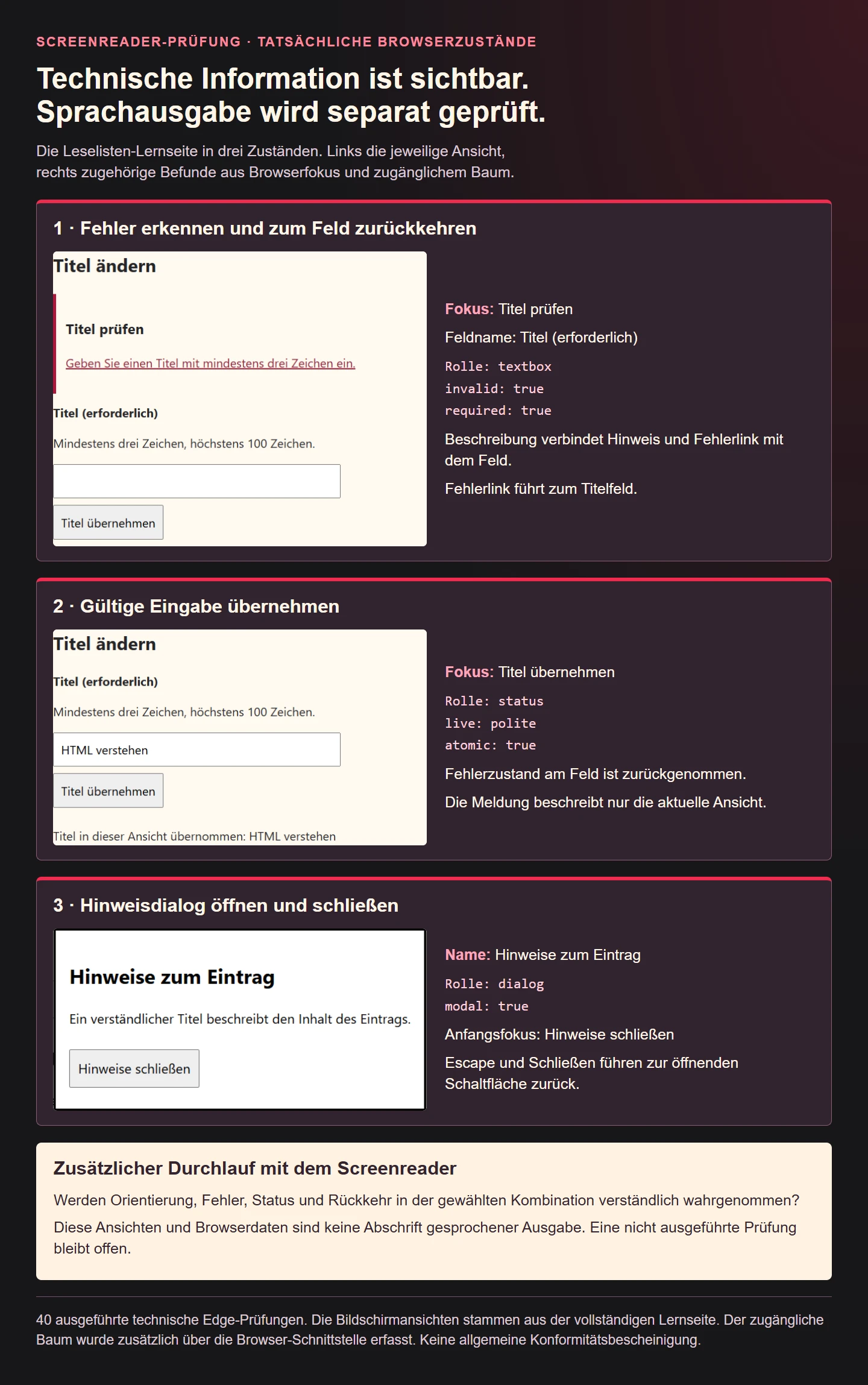
The example reveals an error summary and focuses its heading. A link leads directly to the title field. The field is associated with the help text and error message. This creates specific questions: is the summary noticed, does the correction route make sense and is the entered value preserved? After a successful correction, does the invalid state disappear? A leftover error attribute can continue to misrepresent a value that is now acceptable.
Moving focus to a summary is one chosen strategy. Not every form needs that same strategy. Another arrangement can be more suitable for a short form. Understandable information, reachable correction and a consistent sequence are the goals. This example deliberately disables automatic browser validation to demonstrate its own error sequence. That does not establish a universal recommendation to disable native validation in every product.
Check status feedback without unnecessary interruption
A valid entry produces a short response. In this learning example, focus stays on the activating button. The message appears in an existing status region. The W3C explanation of status messages distinguishes this information from a change of context. A newly inserted list of search results is not necessarily itself a status message. A brief statement that a search has completed can serve that separate purpose.
In an actual screen reader run, observe whether the important feedback becomes perceivable in the selected combination. Exact wording can vary with settings and verbosity. A useful record captures the essential meaning conveyed. Observing that the new title was announced is different from copying a string out of the DOM and claiming that those precise words were spoken. Preserve that difference when preparing evidence or explaining a result to a client.
The status region should not cause the whole page to be announced again without need. Several live regions changing together can also make the task harder. Try a second valid submission followed by an invalid one. An old success message must not conceal the new error. The demonstration removes previous feedback before assessing the next action and supplies only a message appropriate to its current outcome.
Open, understand and leave a dialog
The information dialog is deliberately small. Its trigger describes its content. Opening it should lead to a sensible position inside it. Its name explains what appeared. A visible button closes it. The Escape route also needs investigation. After closing, someone should be able to resume the original task without searching for a lost position or guessing which part of the underlying page is active.
The W3C modal dialog pattern explains focus and modal behavior. Our example uses native HTML dialog and showModal(). It does not add a custom focus trap based on a fixed list of fields. Such lists can become incorrect when content changes. Native components still require evaluation in the browser and assistive technology combinations supported by the actual product.
Distinguish the inactive background page from the browser interface that remains available. A test should not mistake every move toward browser controls for a jump into a background form field. In the technical Edge run, Tab did not reach an underlying page control and the reverse route returned to the dialog. The information offered by a screen reader during that sequence requires an additional run with that screen reader. The browser observation alone does not settle it.
The complete learning page
This page has no processing backend and sends no message. For a reproducible browser check, it can still be served through a small dedicated web server. Its field changes only the current view. Output is inserted as text rather than interpreting the entered title as HTML. The page is a bounded interaction example, not a complete contact or account management template.
<!doctype html>
<html lang="de"><meta charset="utf-8"><meta name="viewport" content="width=device-width,initial-scale=1"><title>Leseliste bearbeiten: Screenreader-Lernseite</title>
<style>body{font:20px/1.5 system-ui;margin:2rem;max-width:55rem;background:#fff9ef;color:#252528}a{color:#922139}button,input{font:inherit;padding:.7rem}button{margin:.7rem .7rem .7rem 0}label{font-weight:bold;display:block}input{max-width:100%;width:28rem}*:focus-visible{outline:3px solid #ba1743;outline-offset:4px}.skip{position:absolute;top:-100px}.skip:focus{position:static}.error{border-left:5px solid #ac183b;padding:1rem;margin:1rem 0}dialog{max-width:35rem}dialog::backdrop{background:#17171a99}</style>
<a class="skip" href="#main">Zum Inhalt</a><header><p>Leseliste</p><nav aria-label="Hauptnavigation"><a href="#overview">Übersicht</a> · <a href="#edit">Eintrag bearbeiten</a></nav></header>
<main id="main" tabindex="-1"><h1>Leseliste bearbeiten</h1><p>Auf dieser Lernseite wird nur eine Beispielansicht geändert. Es werden keine Angaben versendet oder dauerhaft gespeichert.</p>
<section id="overview"><h2>Eintrag verstehen</h2><p>Die Leseliste enthält einen Eintrag: Semantisches HTML.</p><button id="details" type="button">Hinweise zum Eintrag öffnen</button></section>
<section id="edit"><h2>Titel ändern</h2><div id="errors" class="error" hidden><h3 id="error-heading" tabindex="-1">Titel prüfen</h3><p><a href="#title" id="error-link">Geben Sie einen Titel mit mindestens drei Zeichen ein.</a></p></div>
<form novalidate><label for="title">Titel (erforderlich)</label><p id="title-help">Mindestens drei Zeichen, höchstens 100 Zeichen.</p><input id="title" name="title" type="text" required maxlength="100" aria-describedby="title-help"><button type="submit">Titel übernehmen</button></form><p id="result" role="status"></p></section>
</main><footer><p>Beispiel einer Leseliste</p></footer>
<dialog id="info" aria-labelledby="info-title"><h2 id="info-title">Hinweise zum Eintrag</h2><p>Ein verständlicher Titel beschreibt den Inhalt des Eintrags.</p><form method="dialog"><button autofocus>Hinweise schließen</button></form></dialog>
<script>
const title=document.querySelector('#title'),errors=document.querySelector('#errors'),result=document.querySelector('#result'),info=document.querySelector('#info');
document.querySelector('#details').addEventListener('click',()=>info.showModal());
document.querySelector('#error-link').addEventListener('click',event=>{event.preventDefault();title.focus();});
document.querySelector('main form').addEventListener('submit',event=>{
 event.preventDefault();result.textContent='';const value=title.value.trim();
 if(value.length<3||value.length>100){errors.hidden=false;title.setAttribute('aria-invalid','true');title.setAttribute('aria-describedby','title-help error-link');document.querySelector('#error-heading').focus();return;}
 errors.hidden=true;title.removeAttribute('aria-invalid');title.setAttribute('aria-describedby','title-help');result.textContent='Titel in dieser Ansicht übernommen: '+value;
});
</script></html>
Separate technical findings from actual assistive output
The learning page passed 40 technical browser checks in Edge. They cover recognized names and roles, the skip link destination, the focused error target, the field's association with its help and the focus return after the dialog. The status content was checked after a valid entry. A title containing HTML syntax was rendered as text, producing no corresponding image element or form transmission.
Those results are not recorded speech output. An accessible browser tree shows information offered by the browser. It does not establish when a particular screen reader announces that information, whether virtual navigation is understandable or how comfortably a task can be completed. A positive statement about those outcomes needs the additional executed walkthrough with documented output. An interrupted or unperformed test remains open rather than silently becoming a pass.
A successful run with one combination is also not universal approval. A later change to error handling, another dialog script or a new browser release may justify a targeted repeat. The WAI guidance on selecting evaluation tools highlights limits on automated conclusions. Human judgement and technical tools complement each other. A single score does not replace observation of the workflows people actually need.
Keep a reproducible record with explicit open questions
A finding should contain the starting state, performed steps, essential expected information and actual observation. Add the environment and appropriate evidence. A speech viewer can help record output when it actually belongs to the assistive technology being tested. A speech bubble written afterwards is an illustration, not an observation. Confidential inputs and personal information should not be copied uncritically into reports intended for public sharing.
| Task | Essential expectation | Suitable evidence |
|---|---|---|
| Identify the page | Understandable title and structure | Documented reading walkthrough |
| Correct an error | Affected field and correction route discoverable | Steps, focus and actual output |
| Recognize a change | Accurate feedback perceivable | Observed status announcement |
| Leave a dialog | Resume the task at a sensible point | Opening and closing sequence |
Use passed, failed, not applicable and not tested with explicit meanings. Do not replace not tested with a green default. Describe a real failure through its effect on the task: after rejection, the affected field cannot be identified. That is more useful to a development team than an isolated list of attribute names without the workflow in which they matter.
When retesting a correction, begin from the original starting state rather than jumping straight to the repaired control. Otherwise a successful local change can conceal a remaining obstacle earlier in the task. Keep the previous finding, the implemented correction and the new observation distinguishable. A report becomes maintainable when another evaluator can follow it without needing the author's memory of the session.
Checklist for regular workflow evaluation
Prioritize corrections by their actual effects. An unreachable completion action can prevent a task altogether. An unclear name can cause additional searching. Excessive status feedback can slow a task down. Describe those effects rather than inventing a universal percentage score. Also read a relevant section in sequence before navigating by element type. Visual proximity may communicate a relationship that disappears in linear reading. The important question is whether essential information remains understandable without prior knowledge of where it was placed.
- Select important business tasks and relevant states.
- Document versions, settings and the interaction combination.
- Investigate orientation separately from direct keyboard operation.
- Compare names, roles and states against the actual action.
- Trigger and correct at least one meaningful error.
- Check feedback for perceptibility and factual accuracy.
- Test dialogs including closing and returning.
- Distinguish the technical tree, visible focus and actual output.
- Keep unperformed checks open and label evidence accurately.
- Repeat affected tasks after relevant changes.
This routine makes barriers reproducible and corrections verifiable. It also prevents misleading success claims. Useful screen reader evaluation asks more than whether content could theoretically be read aloud. It investigates whether the important steps of an actual task are offered understandably and reliably.